If your Litter-Robot 4 is displaying a blue light that blinks every few seconds, your device is attempting to connect or reconnect to your Wi-Fi network. This blinking pattern is the unit’s way of signaling that it recognizes a wireless network should be connected but cannot establish or maintain that connection. For example, if you recently moved your router to a different room or changed your network password, you might see this blue blinking light appear and persist until the connection issue is resolved.
The good news is that this is not a hardware failure—it’s a connectivity problem that can almost always be fixed with basic troubleshooting steps. The blue light indicator on your Litter-Robot 4 serves as a diagnostic tool, communicating the device’s current status without requiring you to open the Whisker app. A slow blue blink, typically occurring once every two to three seconds, specifically indicates that your Litter-Robot 4 WiFi unit is in active reconnection mode. Understanding this light code is the first step toward getting your smart litter box back online and restoring app monitoring, automatic scheduling, and other connected features that make the device worthwhile.
Table of Contents
- What Does the Litter-Robot 4 Blue Light Blinking Pattern Indicate?
- Why the 2.4 GHz WiFi Band Requirement Matters
- How the Whisker App Connects to Your Litter-Robot 4
- Official Troubleshooting Steps That Work
- Router Placement, Interference, and Ongoing Connection Issues
- Using the Official Troubleshooting Wizard
- When DIY Troubleshooting Isn’t Enough
- Conclusion
- Frequently Asked Questions
What Does the Litter-Robot 4 Blue Light Blinking Pattern Indicate?
The Litter-Robot 4 uses a color-coded light system to communicate its operational status, and the blue light specifically relates to Wi-Fi connectivity. When the blue light blinks slowly and repeatedly—approximately every two to three seconds—it means your device is attempting to connect to your wireless network. This is distinct from other light patterns; for instance, a solid blue light would indicate successful Wi-Fi connection, while other colors represent different operational states like cleaning cycles or error conditions. The blinking pattern is persistent because the device continues trying to reconnect on its own, cycling through connection attempts until either the connection is restored or you intervene with troubleshooting. What makes this blinking pattern both helpful and sometimes frustrating is that it doesn’t indicate which specific problem is preventing connection. The issue could be a network password change, router restart, a switch to a different Wi-Fi band, or simply being out of range.
Your Litter-Robot 4 will keep attempting to reconnect for an extended period, blinking that blue light continuously. This persistence is actually a safety feature—the device doesn’t give up immediately, giving you time to diagnose and fix the underlying issue. However, if left unresolved for too long, the repeated connection attempts can eventually drain the device’s stability or frustrate owners who aren’t sure what the blinking means. The specific timing of the blink matters because Litter-Robot uses different intervals to indicate different statuses. A quick double-blink every few seconds differs from a slow single blink, and understanding these distinctions can help you pinpoint whether the problem is a network configuration issue, a firmware update requirement, or something else entirely. Consulting the Litter-Robot 4 light codes guide from official support documentation ensures you’re interpreting the signal correctly rather than making assumptions about what the light means.

Why the 2.4 GHz WiFi Band Requirement Matters
The Litter-Robot 4 WiFi unit requires a 2.4 GHz Wi-Fi network and cannot connect to 5 GHz networks, even if both are broadcast by the same router under the same network name (SSID). Many modern routers offer dual-band capabilities, automatically broadcasting both 2.4 GHz and 5 GHz signals simultaneously. Your smartphone or laptop likely defaults to the faster 5 GHz band when available, but your Litter-Robot 4 lacks the hardware capability to connect to that band. If your router is set to “5 GHz only” mode, or if your router is newer and heavily favors 5 GHz connections, this incompatibility will cause the blue light blinking pattern you’re experiencing. This is one of the most common reasons Litter-Robot 4 owners encounter connection issues. The practical limitation here is significant: you may need to adjust your router settings to ensure the 2.4 GHz band remains enabled and broadcast, even though you prefer the faster 5 GHz band for your primary devices.
Some people find this annoying because 5 GHz networks offer faster speeds and lower latency—ideal for video streaming and online gaming—but reverting to dual-band mode ensures your smart pet devices can connect. The workaround is straightforward: most modern routers allow you to create separate SSIDs for the 2.4 GHz and 5 GHz bands, so you can manually connect your Litter-Robot 4 to the 2.4 GHz network while keeping your high-bandwidth devices on 5 GHz. However, this requires you to know your router’s admin interface and be comfortable making these configuration changes. If you’re unsure how to enable or verify your 2.4 GHz band, consult your router’s documentation or contact your internet service provider for guidance. Distance from the router also matters more on the 2.4 GHz band. While 2.4 GHz networks have better range and penetrate walls more effectively than 5 GHz, the signal still weakens with distance and interference. If your Litter-Robot 4 is in a bathroom or laundry room far from your router, or if there are multiple concrete walls between the device and the router, you may experience intermittent connection drops that trigger the blue blinking pattern even though everything is technically configured correctly.
How the Whisker App Connects to Your Litter-Robot 4
The Whisker app serves as the control center for all smart features of your Litter-Robot 4, including cycle scheduling, usage statistics, maintenance alerts, and waste level monitoring. For the app to communicate with your device, the Litter-Robot 4 must maintain a stable Wi-Fi connection; if that connection drops and the blinking blue light appears, you’ll lose app functionality immediately. You won’t receive notifications about full waste bins, you can’t remotely activate a cycle, and you can’t view usage statistics until the connection is restored. This dependency means the Wi-Fi connection isn’t just a convenience feature—it’s integral to the device’s smart capabilities.
The Whisker app also handles firmware updates, which are pushed wirelessly to your device. If your Litter-Robot 4 is in blinking blue light mode because it lost connection, it may also be behind on firmware versions, and this creates a catch-22: the app can’t update your device because the device isn’t connected, but updating the firmware might be what fixes the connectivity issue. Litter-Robot’s support team has addressed this chicken-and-egg problem by making firmware updates available both through the app and through a manual troubleshooting process, but ideally you want to resolve the Wi-Fi connection first to ensure smooth app operation. An example: if you update your router firmware and the new version behaves differently with smart home devices, your Litter-Robot 4 might show the blue blinking light until you update its firmware as well, which requires app access—requiring you to reconnect manually first.
Official Troubleshooting Steps That Work
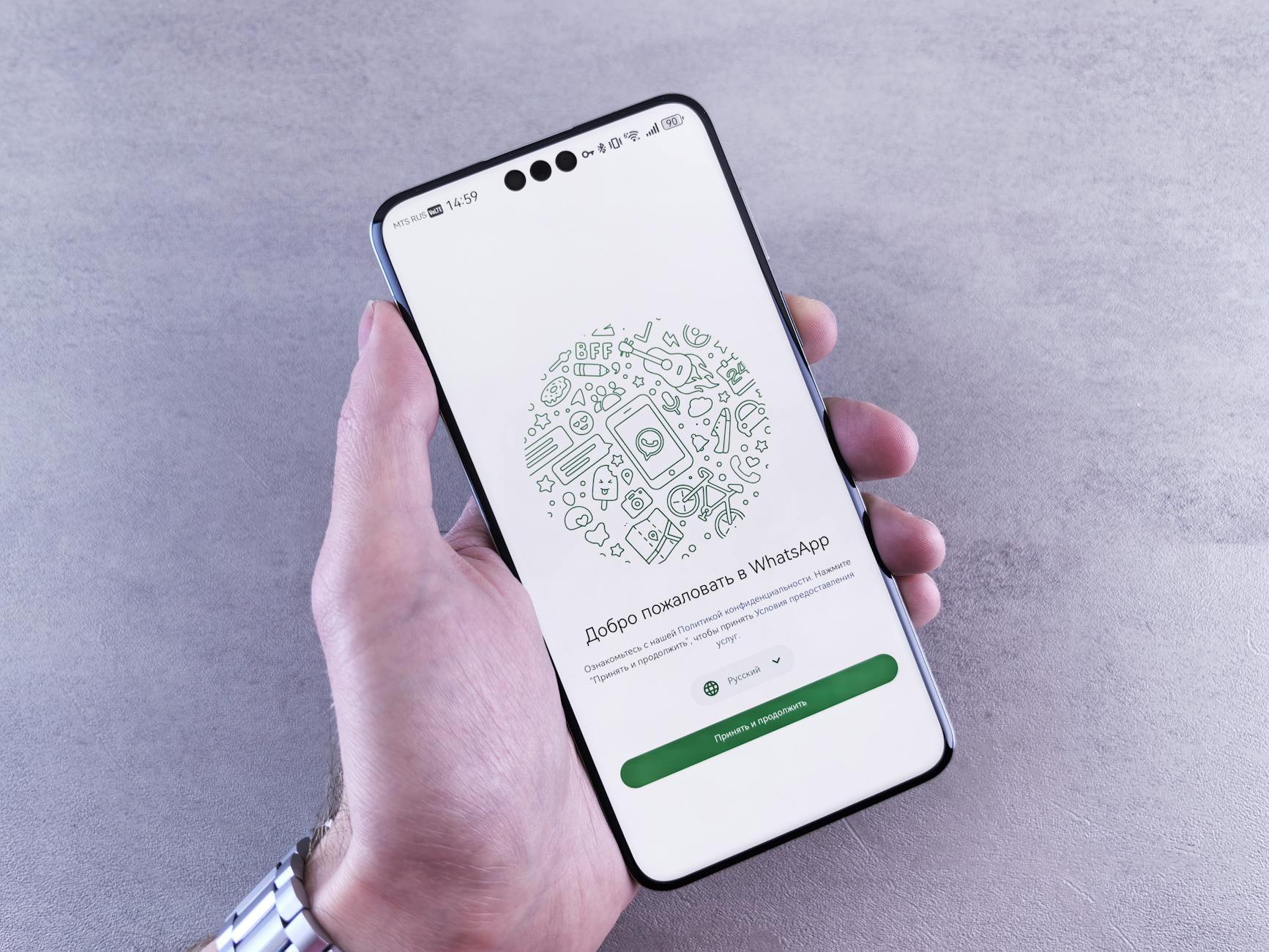
Litter-Robot’s support team has published a specific troubleshooting sequence that resolves most blue light blinking issues. The first and most effective step is power cycling: unplug your Litter-Robot 4 from the electrical outlet, wait a full 60 seconds, then plug it back in. This resets the device’s network state without erasing your settings or configuration. During those 60 seconds, the device fully powers down, clearing any temporary connection state that might be preventing reconnection. Many users report this single step resolves the issue; the blue light appears initially during startup, then transitions to solid blue once connection is reestablished. If power cycling doesn’t work, the next official step is to use the Whisker app’s Wi-Fi reconnection feature. Open the app, navigate to Settings, select Wi-Fi, and initiate a fresh Wi-Fi reconnection.
This walks you through reconnecting to your network and allows you to verify that you’re selecting the correct 2.4 GHz band if your router broadcasts both bands under separate SSIDs. The comparison here is important: manually reconnecting through the app is more reliable than hoping the device reconnects on its own because it forces your device to authenticate fresh and clears any corrupted connection data. The tradeoff is that it requires you to have the app open and be willing to do an active reconnection rather than waiting for automatic recovery. Firmware updates should be the next troubleshooting step. Ensure both your Whisker app and your Litter-Robot 4 firmware are fully up-to-date by checking the app’s Settings menu and installing any available updates. Sometimes connectivity issues are caused by a known bug that a firmware update has already addressed; running an outdated version perpetuates the problem even though a fix is available. If you’re unsure whether an update is available, the Whisker app will explicitly show pending updates in the Settings menu, so there’s no guesswork involved.
Router Placement, Interference, and Ongoing Connection Issues
Even after you’ve successfully reconnected your Litter-Robot 4, you might experience intermittent blue light blinking if your router placement or home environment causes ongoing Wi-Fi interference. The 2.4 GHz band is crowded—it’s shared by cordless phones, microwave ovens, baby monitors, and numerous smart home devices—so interference can cause dropouts that trigger reconnection attempts. Unlike 5 GHz networks, which have more available channels and less congestion, 2.4 GHz networks in dense apartment buildings or homes with many wireless devices can become unreliable. If your Litter-Robot is near a microwave or cordless phone base station, try relocating it if possible or moving the router closer to the device to improve signal strength. A significant limitation to understand is that some older routers or poorly configured networks will cause persistent connection drops regardless of troubleshooting. If you live in an apartment building with 20+ Wi-Fi networks on the same channel, or if your router is from 2015 and lacks proper 2.4 GHz band management, you might never achieve rock-solid stability.
In these cases, investing in a mesh Wi-Fi system or a newer dual-band router designed for smart home devices often provides more reliable connection. Warning: never attempt to solve connection issues by switching to a cellular or Bluetooth-only connection—the Litter-Robot 4 requires standard Wi-Fi and does not support alternative connection methods. Rebooting your router itself occasionally helps if your Litter-Robot 4 shows the blue blinking light persistently. Routers can develop memory leaks or connection table issues after extended uptime, and a simple restart clears these problems. However, every time you reboot your router, all connected devices lose connection momentarily, so you should only do this during a maintenance window when you’re available to troubleshoot. This is a temporary fix, not a permanent solution, and if you find yourself needing to reboot your router weekly to keep your Litter-Robot 4 connected, that’s a sign of a deeper configuration or hardware problem.
Using the Official Troubleshooting Wizard
Litter-Robot’s in-app troubleshooting wizard is specifically designed to walk you through diagnosing and resolving the blue light blinking issue. The wizard asks questions about your network setup, checks your device connectivity status, and guides you through the reconnection process step-by-step. It’s noted as the fastest resolution method because it eliminates guesswork—instead of trying random troubleshooting steps, you follow a guided sequence designed by Litter-Robot’s support team to address the most common causes in the order that’s most likely to work. The wizard also checks your Whisker app version and prompts you to update if a new version is available, addressing one potential cause automatically.
The wizard’s effectiveness comes from its diagnostic capabilities: it can confirm whether your device is actually connecting at all, whether it’s within range of your router, and whether the issue is specific to a particular network or device. For example, if you have both a 2.4 GHz and 5 GHz network with the same SSID, the wizard can help identify if your Litter-Robot 4 is accidentally connecting to the wrong band. If the wizard identifies your device as offline or unable to reach Litter-Robot’s servers, that provides specific information you can report to support if you need further assistance. Using this tool prevents you from spending hours on ineffective troubleshooting steps.
When DIY Troubleshooting Isn’t Enough
If power cycling, manual reconnection, firmware updates, and the troubleshooting wizard all fail to restore connection, you’re dealing with either a hardware issue specific to your Litter-Robot 4 WiFi unit, or a network environment that’s genuinely incompatible with the device’s capabilities. At this point, contacting Litter-Robot support is the appropriate next step. Have your troubleshooting history ready—document which steps you’ve already taken, when the blue light blinking started, whether it was preceded by a power outage or network change, and any error messages that appeared in the app. This information helps support determine whether your issue is a known problem with a specific firmware version or router model.
A hardware failure of the WiFi component is uncommon but possible, especially if your Litter-Robot 4 is more than a year old and has been exposed to humidity (bathrooms, laundry rooms). If the blue light never stops blinking even after factory reset, and your router is functioning normally with other devices, your WiFi module may require replacement. Litter-Robot’s warranty covers this type of failure, so don’t attempt to repair it yourself; contact support to arrange a replacement device. Forward-looking, if you purchase a new router or move your device to a different location in the future, the troubleshooting steps described above should prevent the issue from recurring.
Conclusion
A blue light on your Litter-Robot 4 blinking every few seconds is a clear signal that your device is attempting to connect to Wi-Fi but cannot establish that connection. This is a common, resolvable issue that usually stems from band incompatibility (5 GHz networks instead of 2.4 GHz), a lost Wi-Fi password, or router configuration changes. The good news is that official troubleshooting steps—power cycling, manual reconnection through the Whisker app, firmware updates, and using the in-app troubleshooting wizard—resolve the problem for most users within minutes.
To restore your Litter-Robot 4 to full functionality, start with a power cycle, then verify your 2.4 GHz network is enabled and use the Whisker app to manually reconnect. If the issue persists, update your firmware and use the official troubleshooting wizard. Only after exhausting these steps should you contact Litter-Robot support for potential hardware diagnostics. Taking action now prevents extended periods without app monitoring and ensures your smart litter box can deliver the automated convenience and health insights it’s designed to provide.
Frequently Asked Questions
Can I connect my Litter-Robot 4 to a 5 GHz Wi-Fi network?
No. The Litter-Robot 4 WiFi unit only supports 2.4 GHz networks. If your router broadcasts both bands, ensure the 2.4 GHz band is enabled or use the app to manually select it during reconnection.
How long should I wait for the blue light to stop blinking on its own?
The device will attempt to reconnect automatically for an extended period, but waiting is usually less efficient than proactively troubleshooting. Complete a power cycle and manual reconnection for faster results.
Does the blue light blinking mean my Litter-Robot 4 is broken?
No. It’s a connectivity issue, not a hardware failure. The device itself is functioning normally; it simply cannot reach your Wi-Fi network.
What if the troubleshooting wizard doesn’t fix the issue?
Document which steps you’ve completed, verify your 2.4 GHz network is enabled, check for interference from other devices, and contact Litter-Robot support with your troubleshooting history.
Will a firmware update fix the blue light blinking?
Sometimes. If the blinking is caused by a known software bug, a firmware update may resolve it. Always keep your device and app updated before concluding the issue is hardware-related.
Can I use my Litter-Robot 4 without Wi-Fi?
The device operates basic litter box functions (cycling and waste detection) without Wi-Fi, but you lose app features like scheduling, notifications, and usage statistics. The Wi-Fi connection enables the “smart” features that justify the cost.