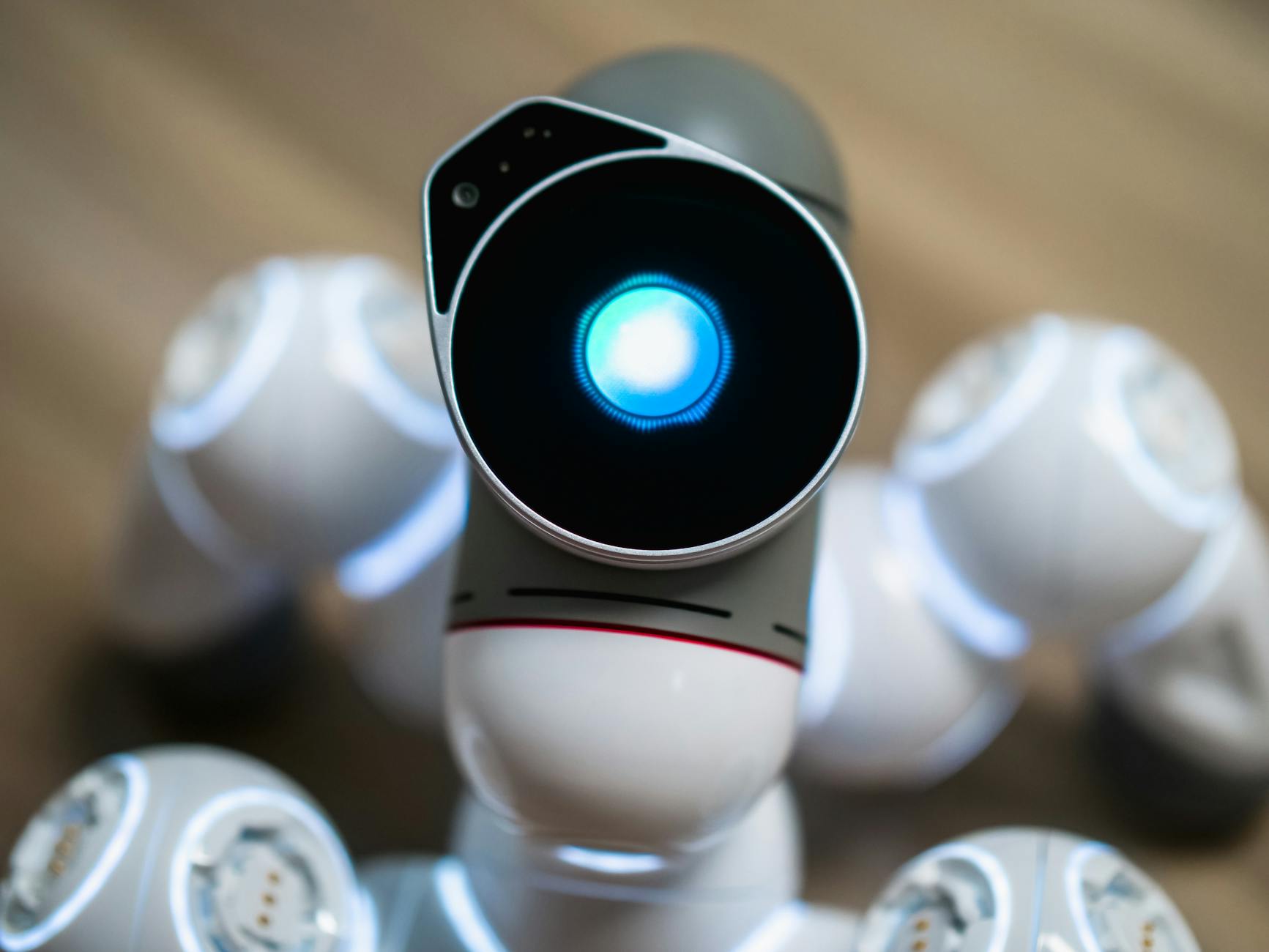
The blue flashing light on your Litter-Robot 4 after reconnecting to WiFi indicates that the device is actively attempting to establish or re-establish a connection to your wireless network. This is usually a temporary state that resolves within a few minutes, but when it persists, it signals a communication problem between the device and your router that requires troubleshooting.
If you’ve just moved your Litter-Robot to a new location, changed your WiFi password, or experienced a power outage, seeing the blue flash for more than five minutes suggests the device either cannot locate your network or cannot authenticate with the credentials it has stored. Most owners discover this issue when they open the companion app and find no connection to their unit, or when they try to set up automatic cleaning schedules through the app only to find the device offline. Unlike a solid blue light (which indicates successful connection), the flashing blue light is the device’s way of signaling it’s in search mode—actively broadcasting for a network to join but not finding one it recognizes.
Table of Contents
- What Does the Blue Flashing Light on Your Litter-Robot 4 Mean?
- Why Does the WiFi Connection Fail After Reconnecting?
- How to Manually Reinitialize the WiFi Connection
- Checking Your Router and Network Settings
- Common Causes of Persistent Blue Flashing and When to Seek Help
- Using Your Litter-Robot Offline While Troubleshooting
- Future Prevention and Monitoring
- Conclusion
- Frequently Asked Questions
What Does the Blue Flashing Light on Your Litter-Robot 4 Mean?
The LED indicator on your Litter-robot 4 communicates its status through different light patterns and colors. A flashing blue light specifically means the device is in WiFi pairing or reconnection mode and is actively searching for your network to join. The robot performs this search by broadcasting out and listening for available networks, then attempting to authenticate using the credentials stored in its memory. If your router is powered on and your device has the correct network name and password saved, this process typically completes within two to five minutes.
The flashing pattern is important to distinguish from other light states. A solid blue light indicates successful connection and that the Litter-Robot is online and communicating with Whisker’s servers. A white light means the device is in offline mode but operating normally. A red light signals an error condition or empty-bag warning. Understanding these distinctions helps you quickly identify whether your connectivity issue is temporary or requires intervention, and prevents unnecessary troubleshooting of a system that may already be resolving the problem on its own.

Why Does the WiFi Connection Fail After Reconnecting?
WiFi connection issues with the Litter-Robot 4 most commonly stem from one of three causes: the device has lost or forgotten the network credentials, your router is not broadcasting on a frequency or band the robot supports, or there is interference blocking communication between the two devices. When you power cycle your router or change your WiFi password, the Litter-Robot retains old authentication information and cannot reconnect until it receives updated credentials. This is different from a smartphone, which typically prompts you to re-enter the password; the Litter-Robot expects you to manually reinitialize the WiFi setup process through the app. Compatibility issues represent another common culprit.
The Litter-Robot 4 operates on the 2.4GHz WiFi band—not the faster 5GHz band that many modern routers offer. If your router is broadcasting only on 5GHz, or if your router’s setup has disabled the 2.4GHz band to encourage faster connections, your Litter-Robot will not find a network to join. Some routers also have security settings that block certain devices from connecting, or they use WiFi standards (like WiFi 6) with compatibility quirks that the Litter-Robot firmware doesn’t fully support. Range and interference also matter: if the device is too far from the router, in a basement while the router is upstairs, or surrounded by concrete walls and metal objects, the signal may be too weak to complete a connection handshake.
How to Manually Reinitialize the WiFi Connection
The standard troubleshooting approach for persistent blue flashing is to fully reset the WiFi connection and set it up again from scratch through the Whiskers app. To do this, locate the small reset button on the back or underside of your Litter-Robot 4—it may require a straightened paperclip or similar tool to access. Holding this button for a few seconds will clear all stored WiFi credentials and revert the device to factory network settings. Once reset, the blue light will continue flashing as the device enters pairing mode and waits for new credentials.
Open the Whiskers app on your smartphone, navigate to the WiFi setup section, and follow the prompts to re-enter your network name and password. This time, ensure you’re entering the correct credentials and that your device is selected the 2.4GHz band if your router broadcasts separate 2.4GHz and 5GHz networks. The app will guide your Litter-Robot through the authentication process, and you should see the light transition from flashing blue to solid blue within a few minutes. If the light goes dark or turns another color, the app will indicate success or display an error code. One owner with a dual-band router reported that her Litter-Robot remained unresponsive to reconnection attempts until she disabled the 5GHz band temporarily, allowing the device to lock onto the 2.4GHz network cleanly.
Checking Your Router and Network Settings
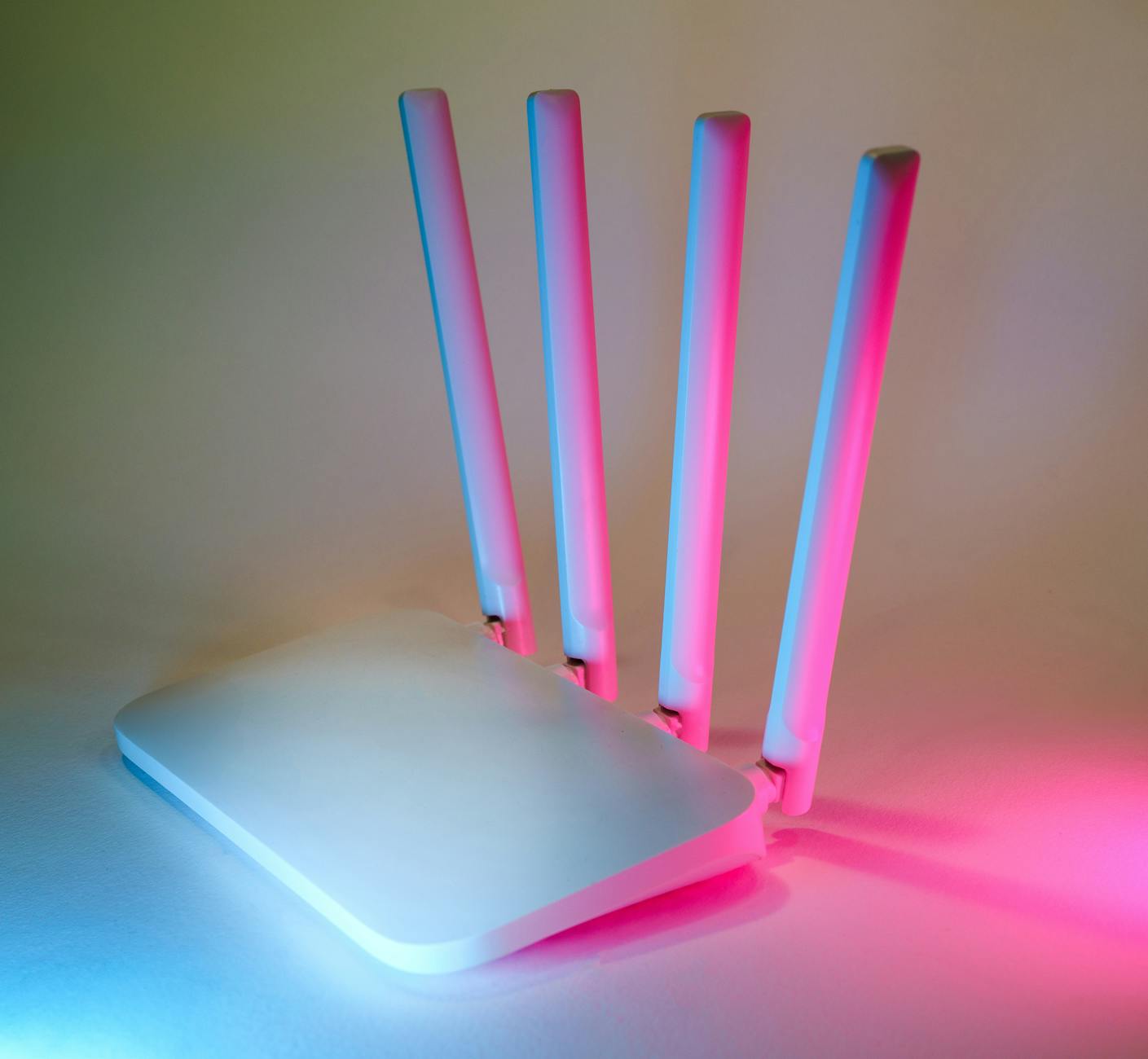
Before assuming your Litter-Robot has a hardware problem, verify your router’s configuration to ensure it supports the device’s needs. Log into your router’s admin panel (usually through a web browser using 192.168.1.1 or 192.168.0.1) and confirm that the 2.4GHz band is enabled and actively broadcasting its SSID. Many modern routers hide the 2.4GHz SSID by default if the owner has prioritized the 5GHz band for speed, making the network invisible to older devices like the Litter-Robot.
Check your router’s security settings to ensure WEP, WPA, or WPA2 encryption is used—the Litter-Robot does not support the newest WPA3 standard in some firmware versions, which can cause reconnection failures if WPA3-only mode is enabled. If your router has a guest network feature enabled, confirm that the Litter-Robot is connecting to the primary network, not the guest network (which sometimes has restricted device-to-device communication). Some owners simplify the troubleshooting process by temporarily disabling advanced security features like MAC filtering during initial setup, then re-enabling them once the device successfully connects. This approach isolates whether the connection issue is a password problem or a network security configuration problem, saving you from repeating the setup dozens of times.
Common Causes of Persistent Blue Flashing and When to Seek Help
If the blue light continues flashing after a full WiFi reset and app reconfiguration, consider less obvious causes. Your router may have a firmware update available that corrects compatibility issues with older smart home devices; updating the router can sometimes resolve mysterious connectivity problems. Interference from other 2.4GHz devices in your home—cordless phones, microwave ovens, baby monitors, or neighboring WiFi networks on overlapping channels—can prevent your Litter-Robot from maintaining a stable connection. Using a WiFi analyzer app on your smartphone to check which channels your neighbors are using, then configuring your router to use a less-crowded channel, sometimes solves the problem immediately.
A failing power adapter or unstable power supply to the Litter-Robot can also cause sporadic connectivity symptoms that mimic WiFi problems. If the device is not receiving steady power, it may drop the connection and restart the WiFi search process repeatedly. If you’ve tried multiple troubleshooting steps and the light still flashes after 15 minutes, contact Whiskers customer support with the device’s serial number and a description of your setup. They can check for known firmware issues, verify the hardware isn’t defective, and may provide a replacement if the unit is within warranty. One notable limitation: the Litter-Robot 4 does not currently support WiFi 6 (802.11ax) networks well, so if you’ve upgraded to a WiFi 6 router, you may need to create a separate 2.4GHz network or downgrade to a WiFi 5 router that offers better legacy device support.

Using Your Litter-Robot Offline While Troubleshooting
A significant advantage of the Litter-Robot 4 is that it operates fully without WiFi connectivity—the WiFi connection only enables the app features like automatic notifications, weight tracking, and cycle scheduling. While troubleshooting the blue flashing light, your Litter-Robot will continue to detect your cat’s presence, rake the litter, and cycle automatically based on the interval timer you set during initial setup.
This means your cat’s litter maintenance doesn’t suffer while you work through connection issues. If WiFi troubleshooting extends over several days, you can adjust the cleaning cycle frequency using the manual controls on the device itself until you restore connectivity. The lack of app access during this period is inconvenient but not a health risk to your cat—the unit simply reverts to its offline-only behavior, which is the same functionality that would operate if you’d never set up WiFi at all.
Future Prevention and Monitoring
Once your Litter-Robot successfully reconnects and the light turns solid blue, take steps to minimize future WiFi disruptions. Position the device within 30 feet of your router and avoid placing it in basements or far corners of the house if possible. If you change your WiFi password—which security best practices recommend doing annually—remember to reinitialize the Litter-Robot’s WiFi connection through the app rather than assuming it will automatically update.
Setting a reminder to periodically check the app for connection status, rather than waiting until you notice the blue flashing light, helps you catch issues early before they escalate into days of downtime. Consider the long-term trajectory of smart home device support. As WiFi standards evolve and WiFi 6 becomes the default, the Litter-Robot 4’s reliance on 2.4GHz compatibility may become more problematic. Whiskers has released firmware updates to improve compatibility, and future hardware generations will likely support newer standards natively, so staying subscribed to Whiskers’ notifications about available updates keeps your device current and functional.
Conclusion
The blue flashing light on your Litter-Robot 4 after reconnecting to WiFi is a sign that the device is searching for and attempting to authenticate with your network. In most cases, this resolves naturally within a few minutes, but when it persists, the issue typically traces back to incorrect stored credentials, network band incompatibility, or router configuration settings.
A full WiFi reset followed by re-setup through the Whiskers app resolves the majority of these cases, and verifying that your router broadcasts on the 2.4GHz band is a critical first step. Your next action should be to check whether the blue light resolves on its own within five minutes, then move through the troubleshooting hierarchy of resetting WiFi credentials, verifying your router supports 2.4GHz, checking for interference, and finally contacting support if none of these steps work. In the meantime, your Litter-Robot continues functioning offline, keeping your cat’s litter clean without app-based features, so there’s no urgency if troubleshooting takes a day or two.
Frequently Asked Questions
How long should I wait before troubleshooting the blue flashing light?
Give the device 5-10 minutes on first attempt. If the light is still flashing after 10 minutes, proceed to the WiFi reset steps rather than waiting longer.
Does the blue flashing light mean my Litter-Robot is broken?
No. It indicates a WiFi connection issue, not a hardware failure. The device will continue to operate normally without WiFi, just without app connectivity.
Why doesn’t my Litter-Robot automatically detect my WiFi password after I change it?
The device stores credentials locally and doesn’t automatically sync with your router when passwords change. You must manually re-enter the new password through the app.
Can I use the Litter-Robot on a 5GHz WiFi network?
The Litter-Robot 4 only connects to 2.4GHz networks. If your router broadcasts both bands, configure the device on the 2.4GHz band specifically.
What does a solid blue light mean, and how is it different from flashing blue?
Solid blue indicates successful connection to WiFi. Flashing blue means the device is actively searching for a network to join but hasn’t connected yet.
Should I contact Whiskers support if the blue light doesn’t stop flashing after resetting WiFi?
Yes, after 15 minutes of persistent flashing following a full reset and reconfiguration attempt, contact Whiskers support to rule out a hardware defect or firmware issue.